In this tutorial: Learn how to record a surf session through the Surf Journal App.
Requirements:
- Download the app: Surf Journal App for iOS
- Create an account
- Add a surfboard and surf break – Upon creating your account you will be asked to add your first surfboard and surf break.
Log A Session
To initiate a new session you have two options:
Option 1: From the Sessions Screen (Fastest)
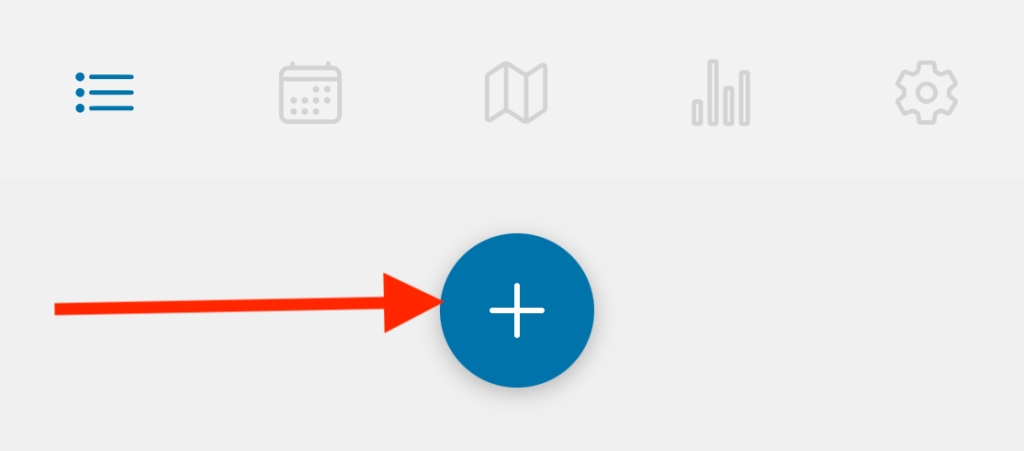
Press the “+” button from the home screen (Sessions) to record a new surf session.
Option 2: From The Calendar (Best for Adding Past Sessions)
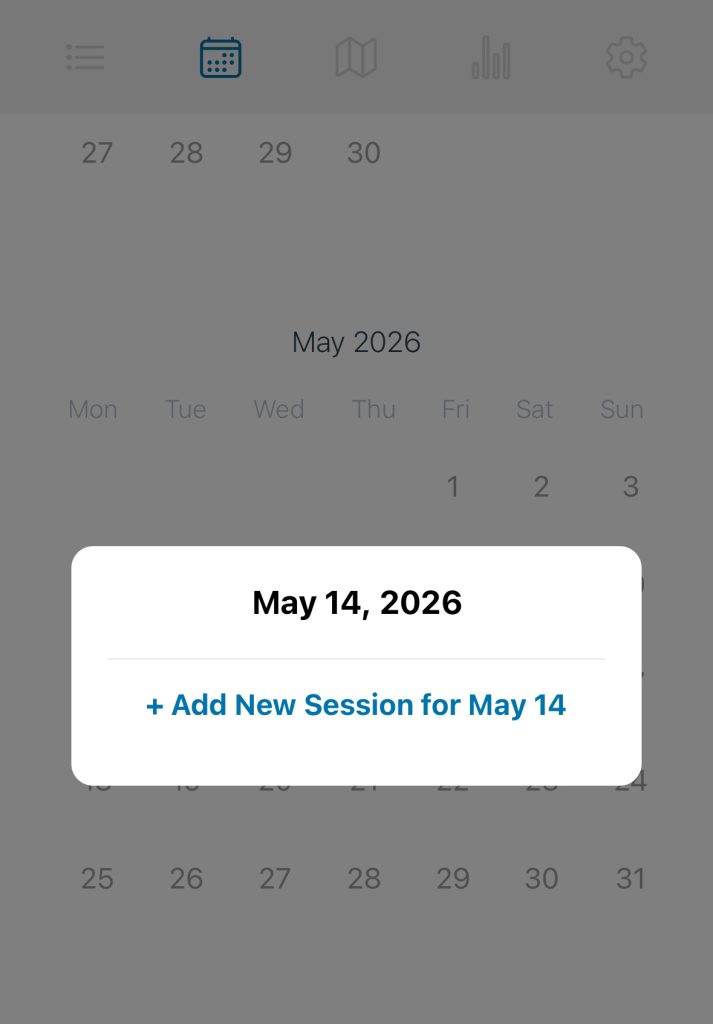
Step 1: Navigate to the calendar screen.
Step 2: Select the date for which you’d like to add a session.
Step 3: Click ‘Add New Session’
Enter Session Details
Step 1: Session Date & Time
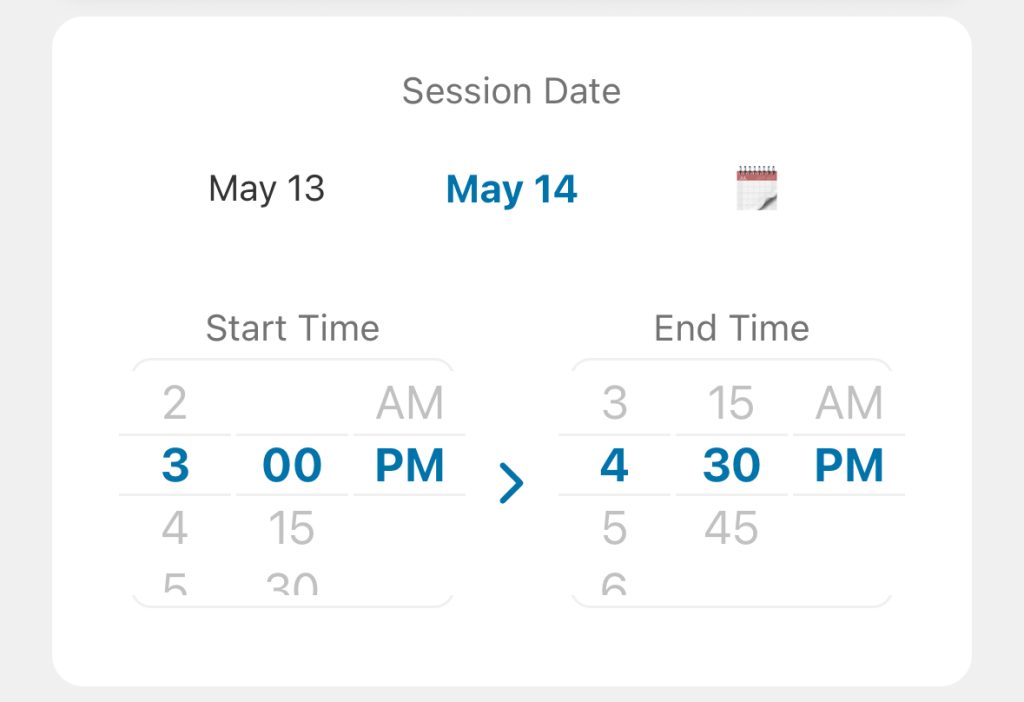
Select the date of your session. If the date isn’t displayed in the quick-pick section, click the calendar to find the date of your session.
Start Time – Approximate time you started your session.
End Time – Approximate time you finished your session.
Note: Times are only available in increments of 15 minutes.
Step 2: Select Surf Break
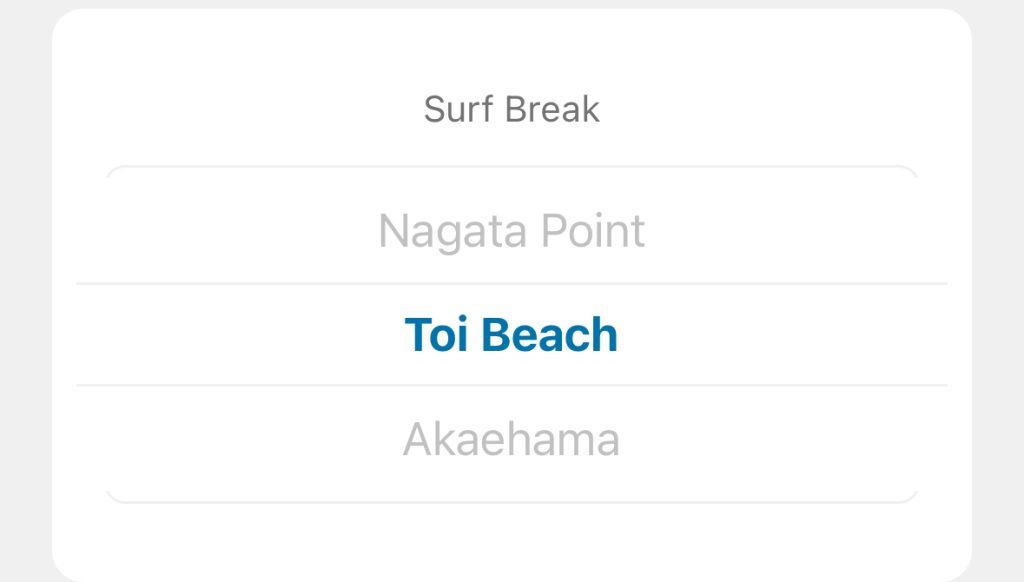
Your surf breaks will be listed in order of proximity to your current location. You can add a new break by scrolling to the ‘Add A Break’ option at the top of the list.
Tip: You can manage your breaks from the Settings screen.
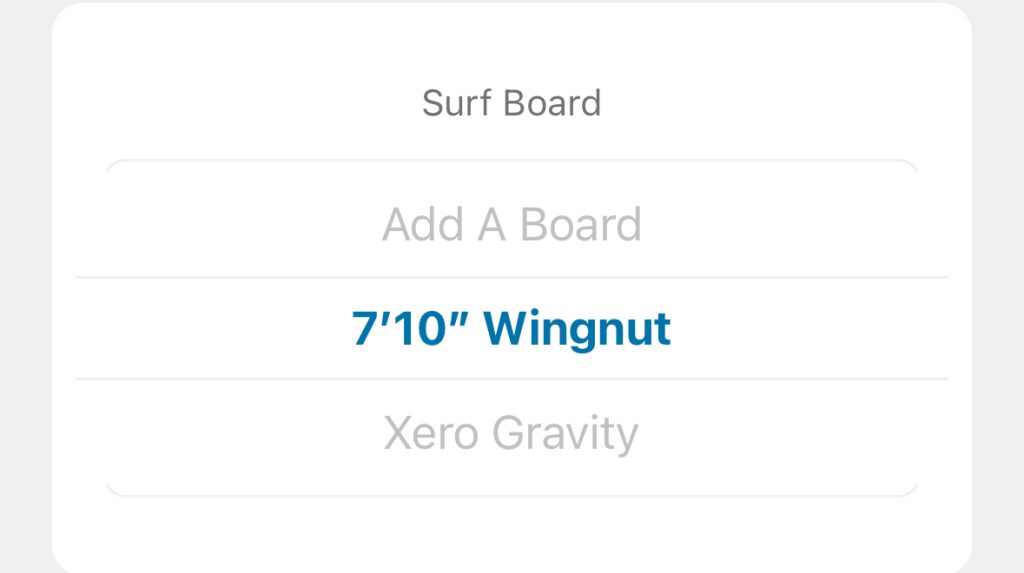
Step 3: Select Surf Board
Choose a board from your list of boards. Select ‘Add A Board’ if you need to add another board.
Tip: You can manage your boards from the Settings screen.
Step 4: Rate Your Session
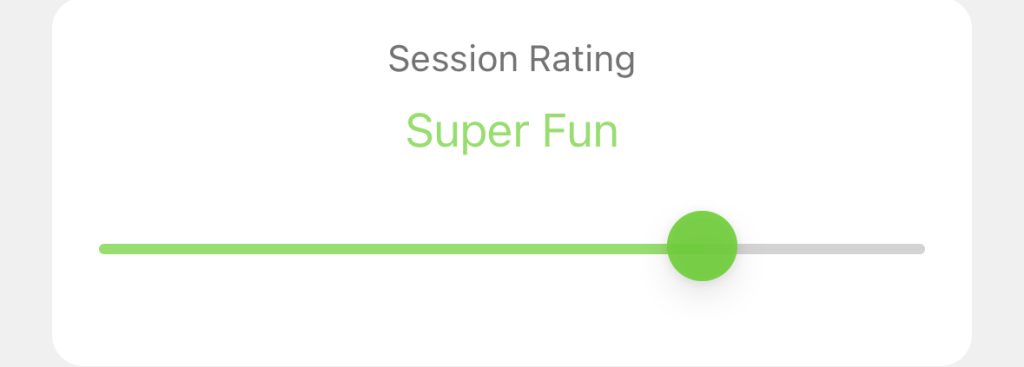
Use the slider bar to add your rating for the surf session.
Options range:
- Terrible
- Not Great
- Fun
- Super Fun
- Epic
Step 5: Add Photos (Optional)
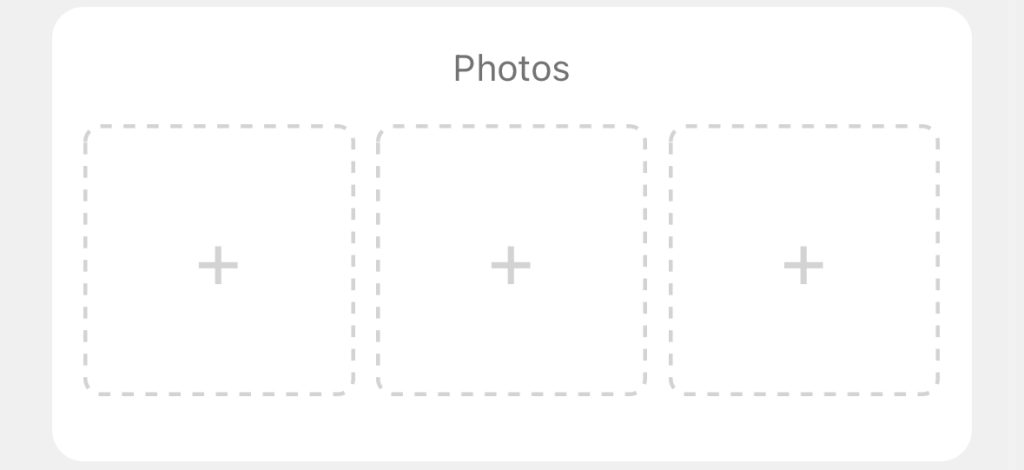
Add up to 3 photos by clicking on the “+” button.
- Select multiple photos from your library using the ‘select’ option (limit is 3)
- Remove a photo after adding it by selecting the “x” in the top right corner of the image
Step 6: Add Notes (Optional)
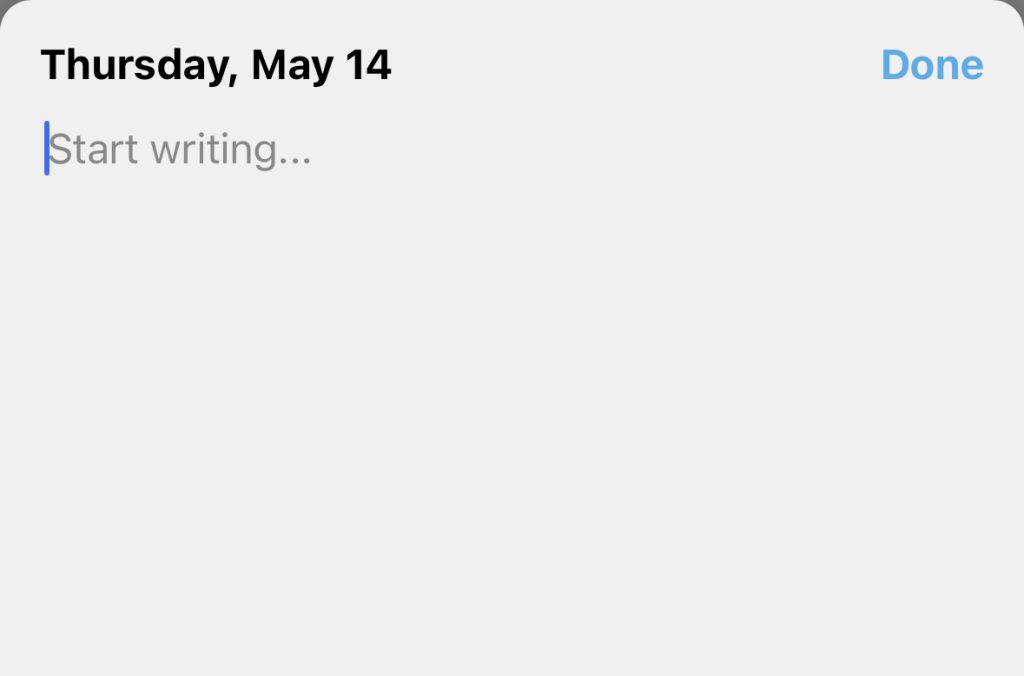
Select the ‘Add Notes’ button to add notes.
Type your notes in the text box and select “Done” when finished.
Step 7: Log it!
Select the ‘Log it!’ button to save your session.
After logging your session explore the other tabs to check your Surf Stats, Surf Map, and Surf Calendar.
Leave a Reply